
Share the project
Share a Project throught Cloud Storage
Projects can be shared directly through Cloud Storage.
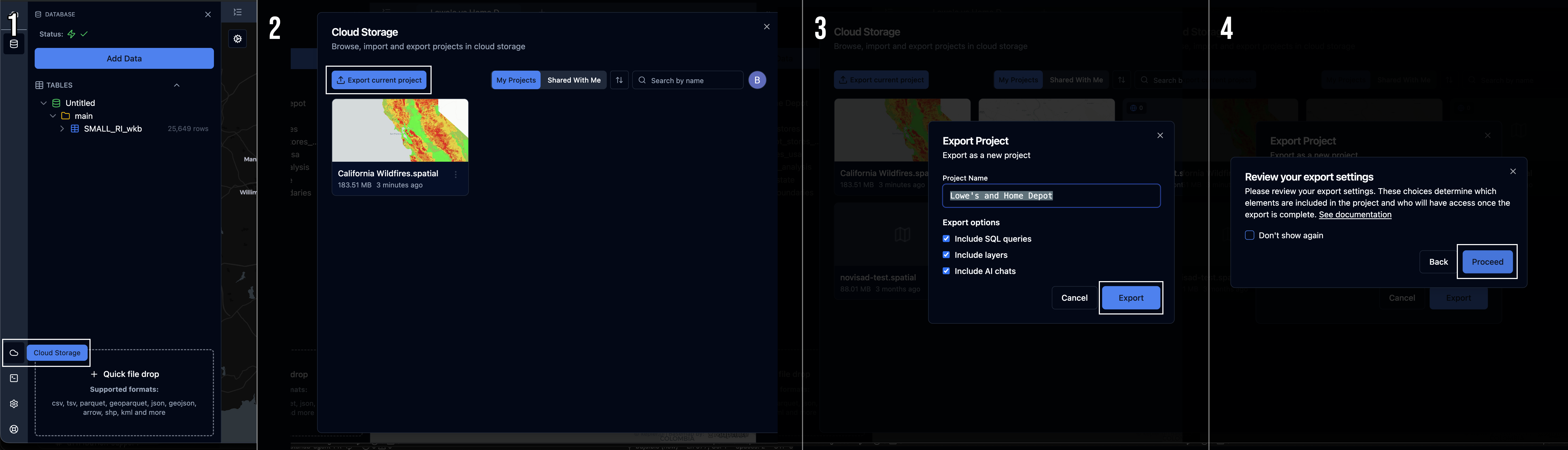
Export project
-
Create or open a project.
-
Open the Cloud Storage panel:
- Click the Cloud Storage button in the left-side menu, or
Menu → File → Cloud Storage
- Click the Cloud Storage button in the left-side menu, or
-
Click export current project
-
Define the project name and review export settings
Share a Project by Email
-
Open the Cloud Storage panel:
- Click the Cloud Storage button in the left-side menu, or
Menu → File → Cloud Storage
- Click the Cloud Storage button in the left-side menu, or
-
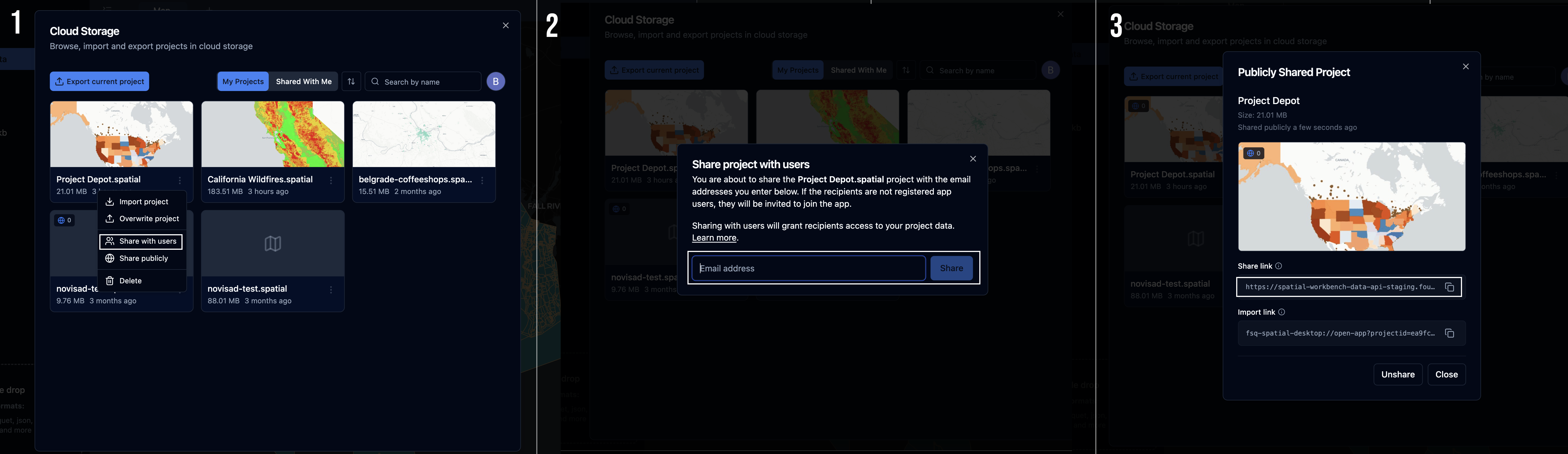
Locate the project you want to share.
-
Click the three-dot menu (
⋮) and select Share. -
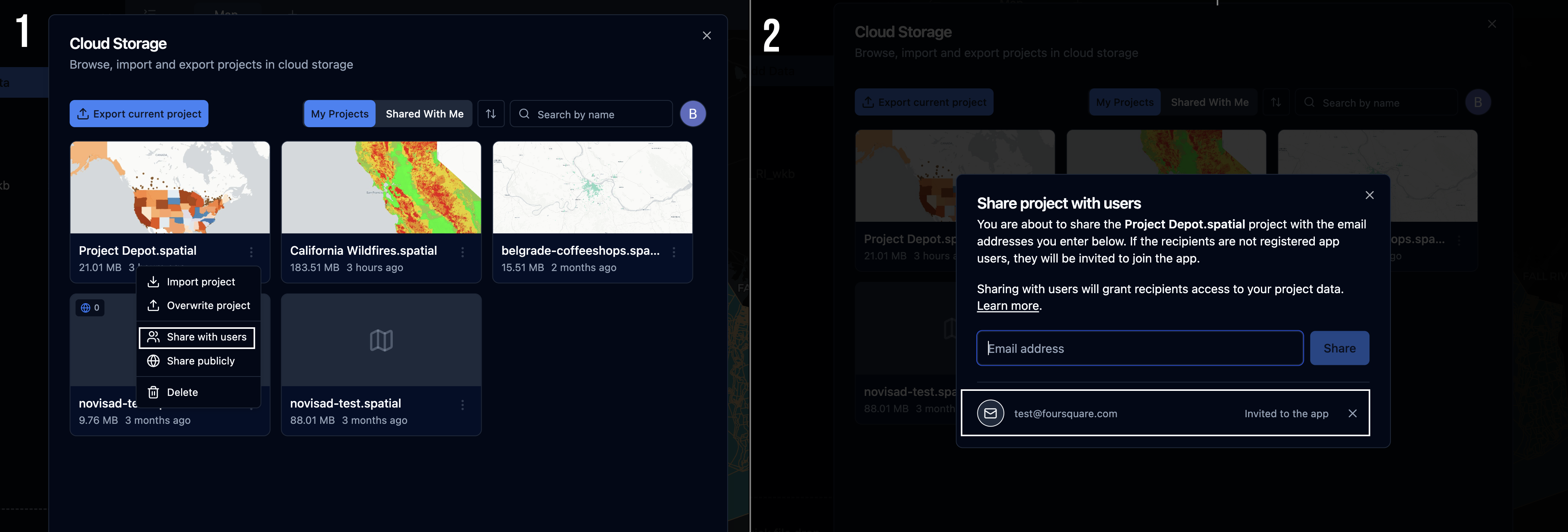
Enter the email addresses of the recipients.
Click Export.
Recipients will receive an email containing a link to open the shared project in FSQ Spatial Desktop.
Shared projects can be accessed from Welcome Screen → Import from Storage → Shared With Me or App Sidebar → Cloud Storage → Shared With Me
Change Sharing Permissions
To manage project access:
Open Cloud Storage using
- Welcome Screen → Import from Storage → My Projects or
- Menu → File → Cloud Storage → My Projects
Then:
- Find the project and click the Share icon.
- Add or remove users as needed.
What Is Shared?
Shared Content
The following items are included when sharing a project:
- The
.spatialDuckDB project database - Datasets imported into the database
- Queries and stored database content
- AI query and chat history (included by default)
Projects are exported as complete database copies and uploaded to cloud storage.
Note: Recipients can download and re-share shared projects.
Not Shared
The following items are never included in shared projects:
- Secrets stored in the Secret Manager
- S3 credentials configured locally in the application
- Local files referenced only by file path
- Secret values not explicitly stored in the database
Each user must configure their own external storage credentials when needed.
Updated about 10 hours ago