
Download and Install
Download and Install FSQ Spatial Desktop
Steps:
-
Open your web browser and navigate to the FSQ Spatial Desktop download page
-
On the download page, choose the appropriate version for your operation system.
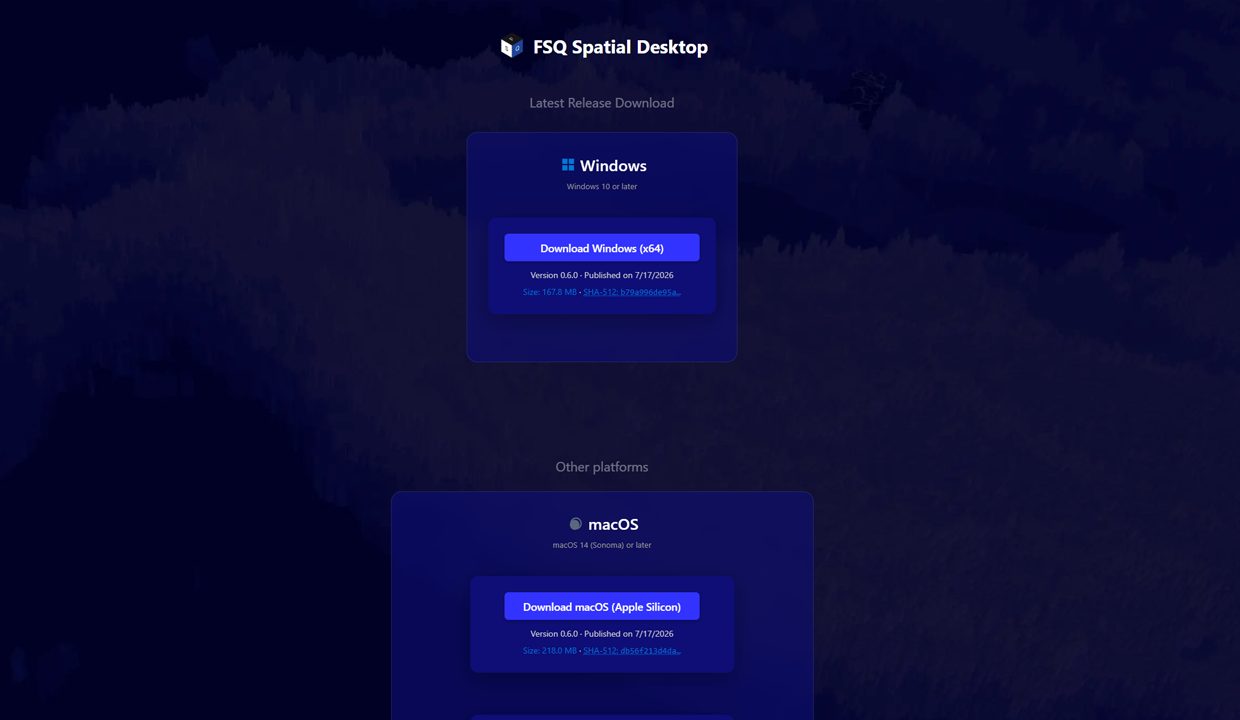
macOS (13 Ventura or later):
-
Choose the appropriate version for your Mac:
- Apple Silicon (FSQ-Spatial-version-arm64.dmg) оr
- Intel (FSQ-Spatial-version-x64.dmg).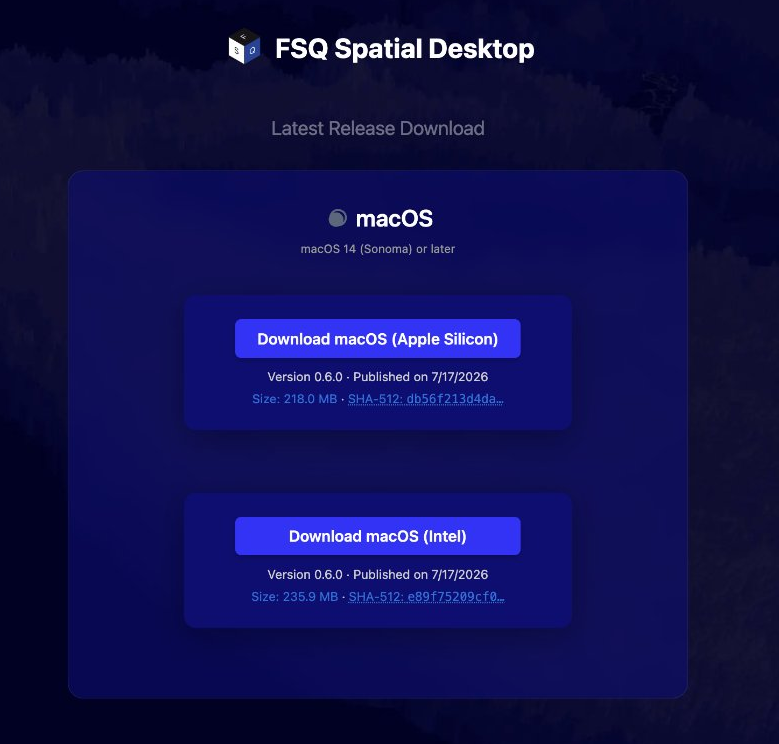
-
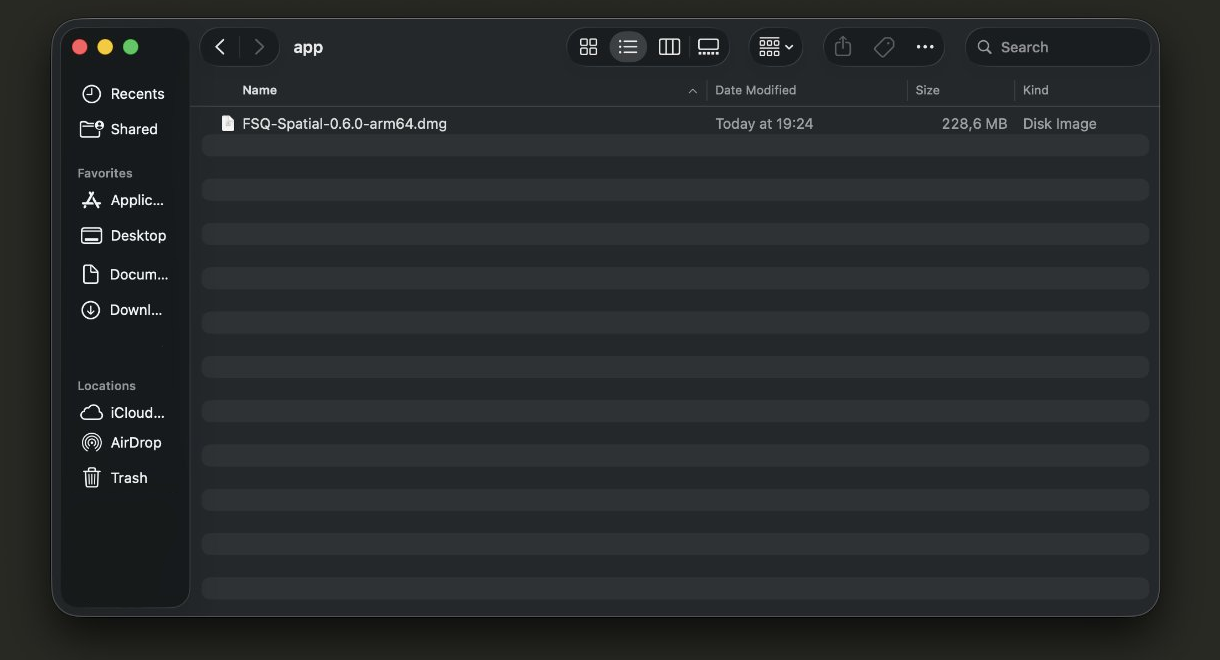
Save the installer file (e.g., FSQ-Spatial-0.1.4-arm64.dmg for Apple Silicon) to your desired location, such as your Downloads folder.
-
Once the download is complete, open the downloaded file.
-
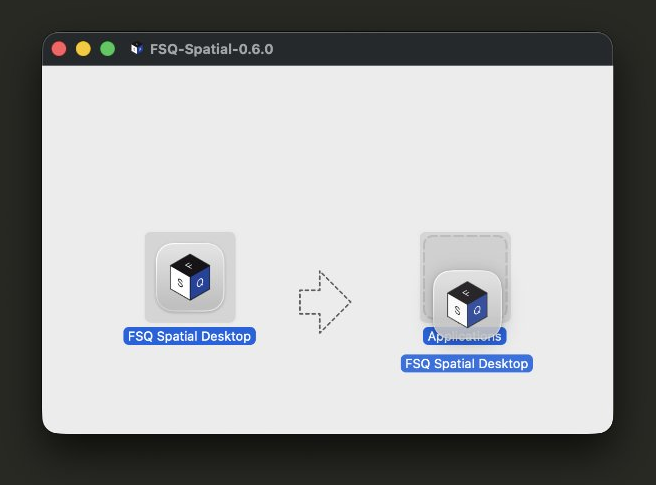
Drag the "FSQ Spatial" application icon into your "Applications" folder to install.
Windows (10 or later):
-
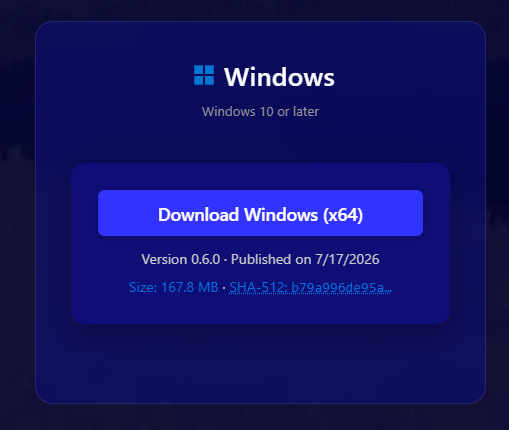
Click the download button to download FSQ-Spatial-version-x64-setup.exe.
-
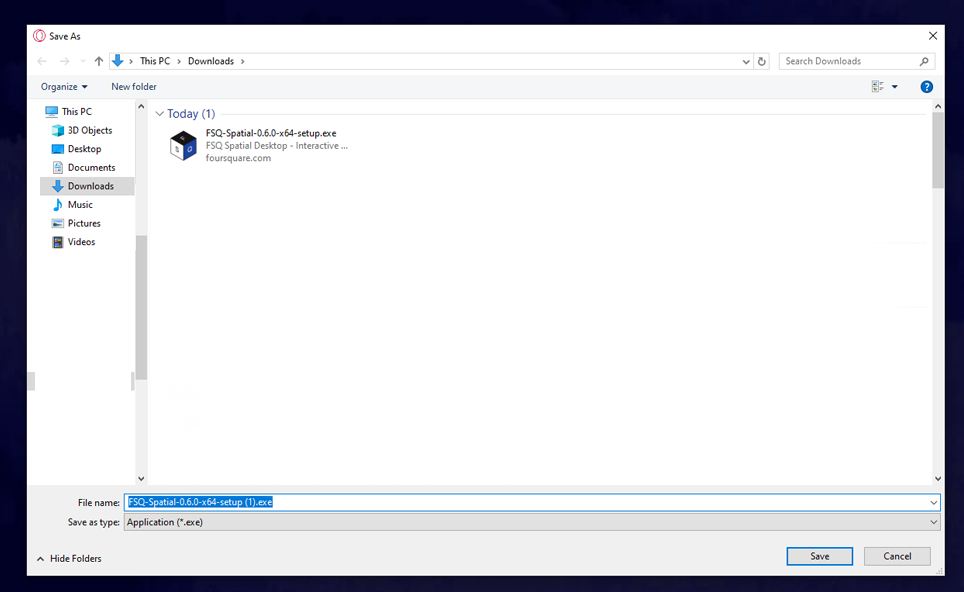
Save the installer file to your desired location.
-
Once the download is complete, double click the .exe file to launch the installer.
-
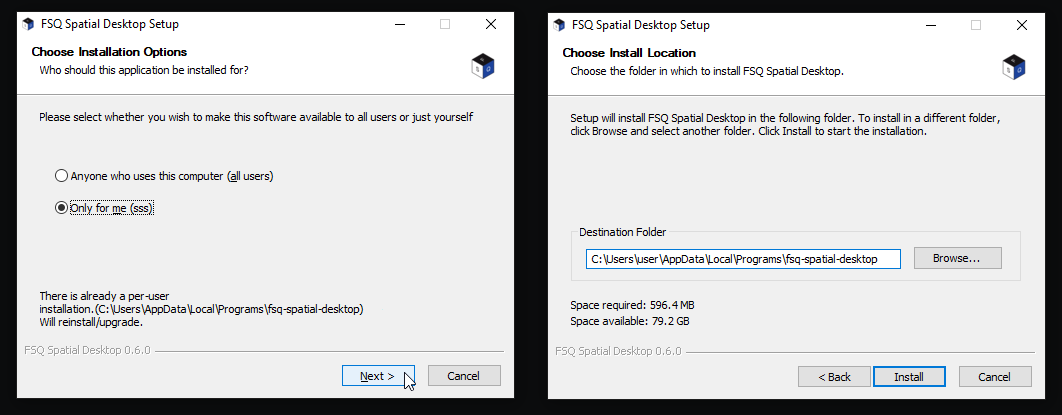
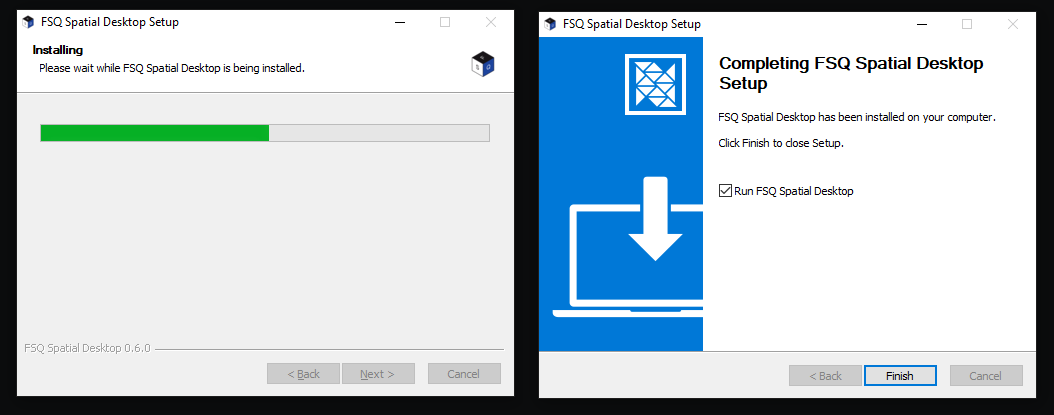
Follow the on-screen prompts to complete the installation.
-
After installation, you can find FSQ Spatial Desktop icon in your Start Menu or desktop.
-
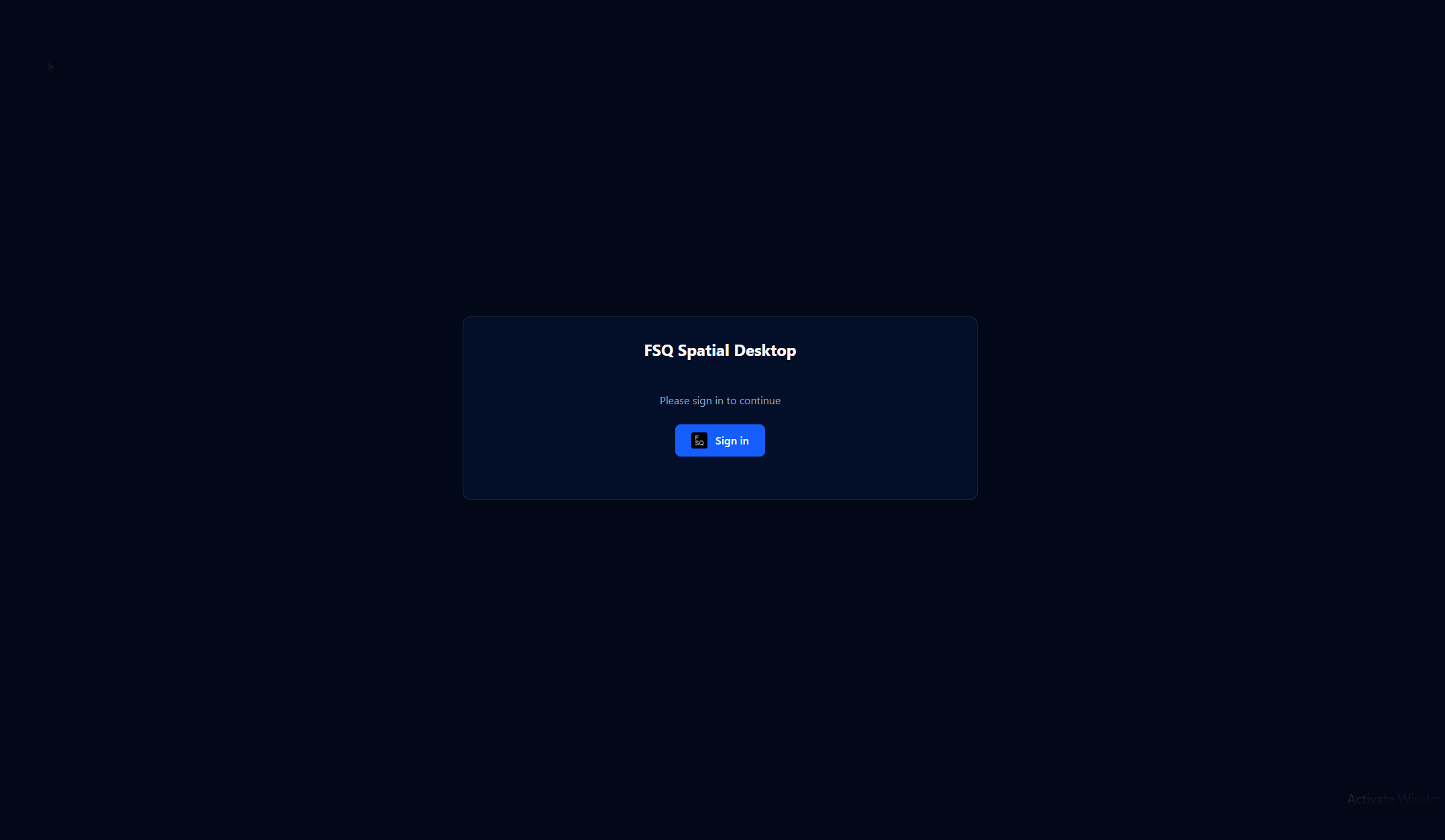
After starting the app you will be greated with a welcome screen
Linux (Ubuntu 22.04+, Debian 12+, or later):
-
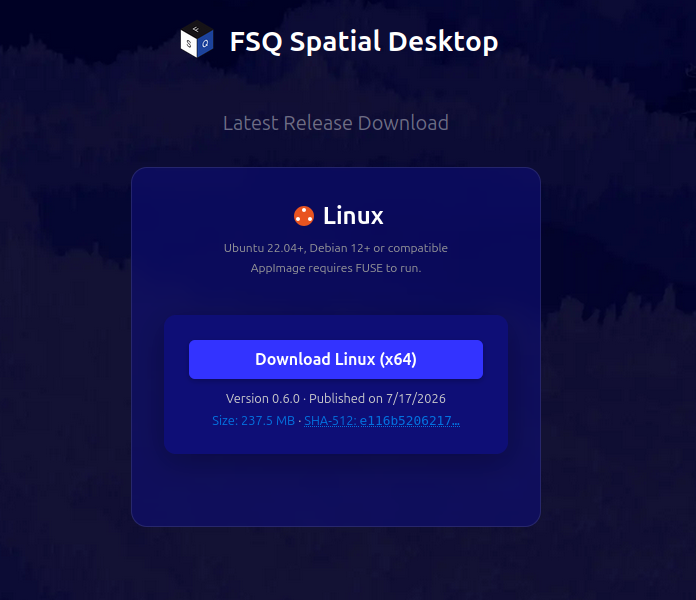
Click the download button to download FSQ-Spatial-version-x64.AppImage.
-
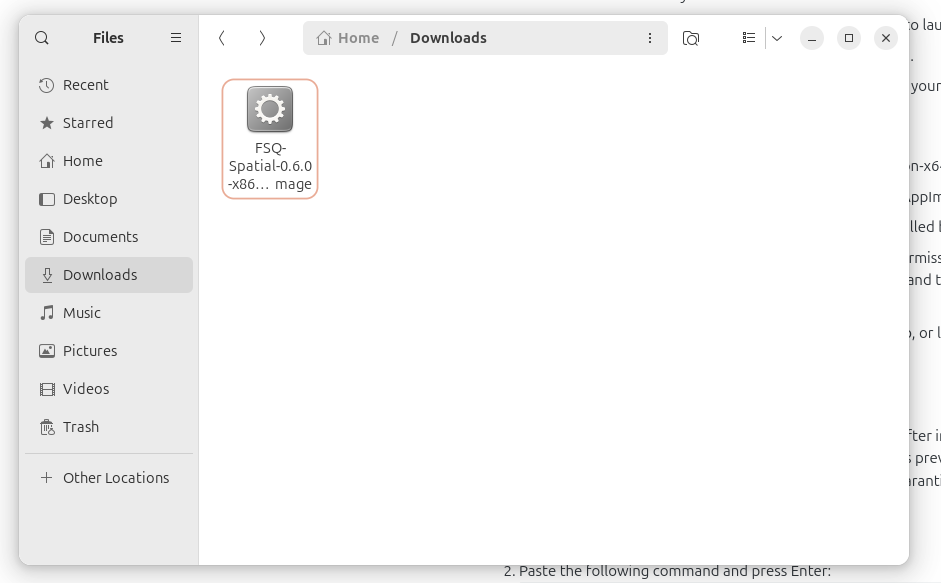
Save the .AppImage file (e.g. FSQ-Spatial-version-x86_64.AppImage) to your desired location.
-
Note: AppImage requires FUSE to run. Ensure FUSE is installed before proceeding.
-
Right click the .AppImage file and select "Properties"->"Permissions" and check the box "Allow executing file as program", or open a terminal and run the following command to make the file executable:
chmod +x FSQ-Spatial-0.1.4-x86_64.AppImage
-
Double click the .AppImage file to run FSQ Spatial Desktop, or launch it from the terminal with:
./FSQ-Spatial-0.1.4-x86_64.AppImage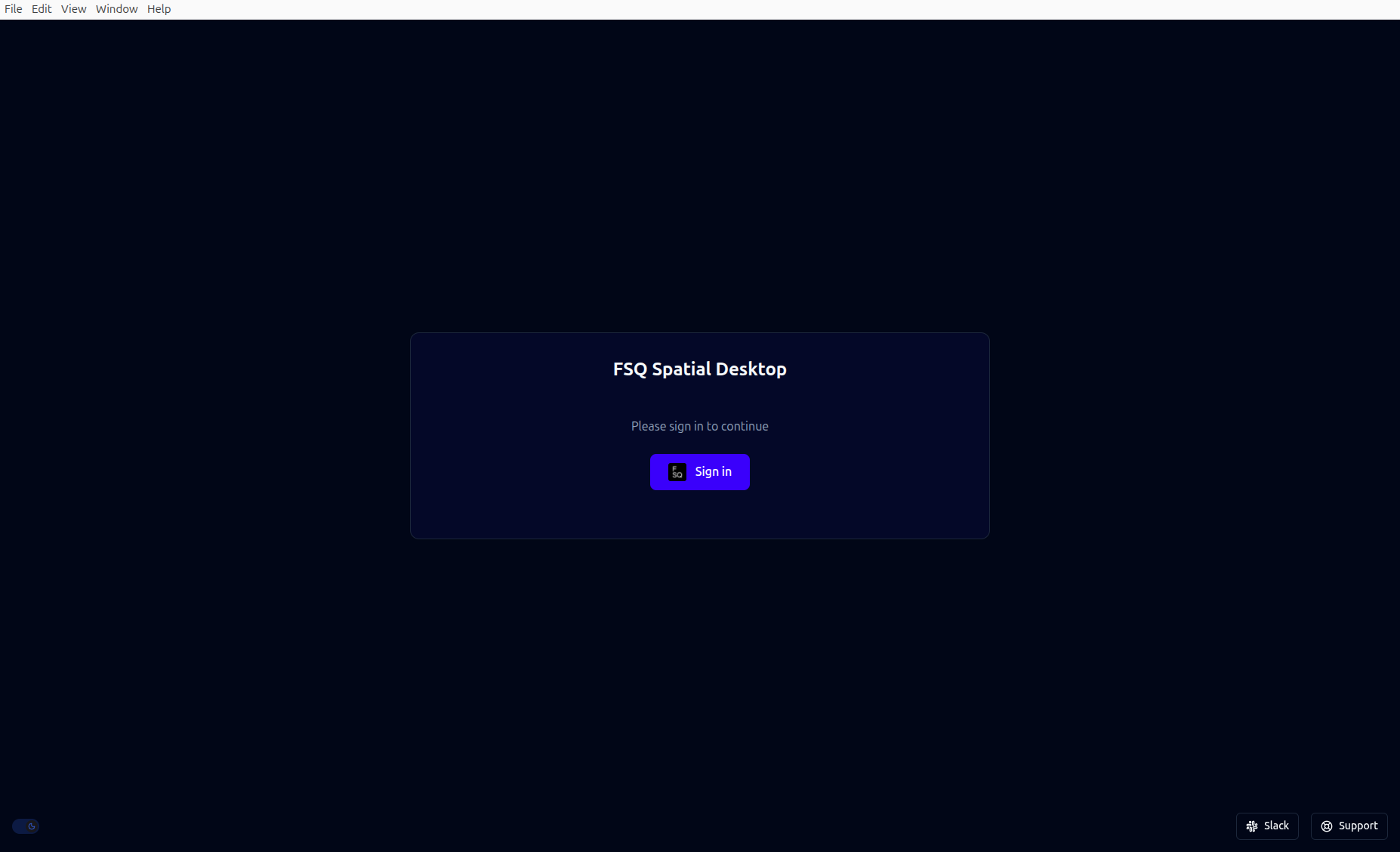
Known Issues:
If you experience the application hanging or failing to launch after installation on macOS, it is likely due to macOS's built-in quarantine system. This security feature can sometimes prevent applications downloaded from the internet from running correctly. To resolve this, you can remove the quarantine attribute from the application using the Terminal:
-
Open Terminal (you can find it in Applications/Utilities).
-
Paste the following command and press Enter:
sudo xattr -r -d com.apple.quarantine /Applications/FSQ\ Spatial\ Desktop.app -
You may be prompted to enter your administrator password. Type it and press Enter (the characters will not be visible as you type).
-
After running the command, try launching FSQ Spatial Desktop again
Updated about 2 hours ago